Panel
The download panel, on your site
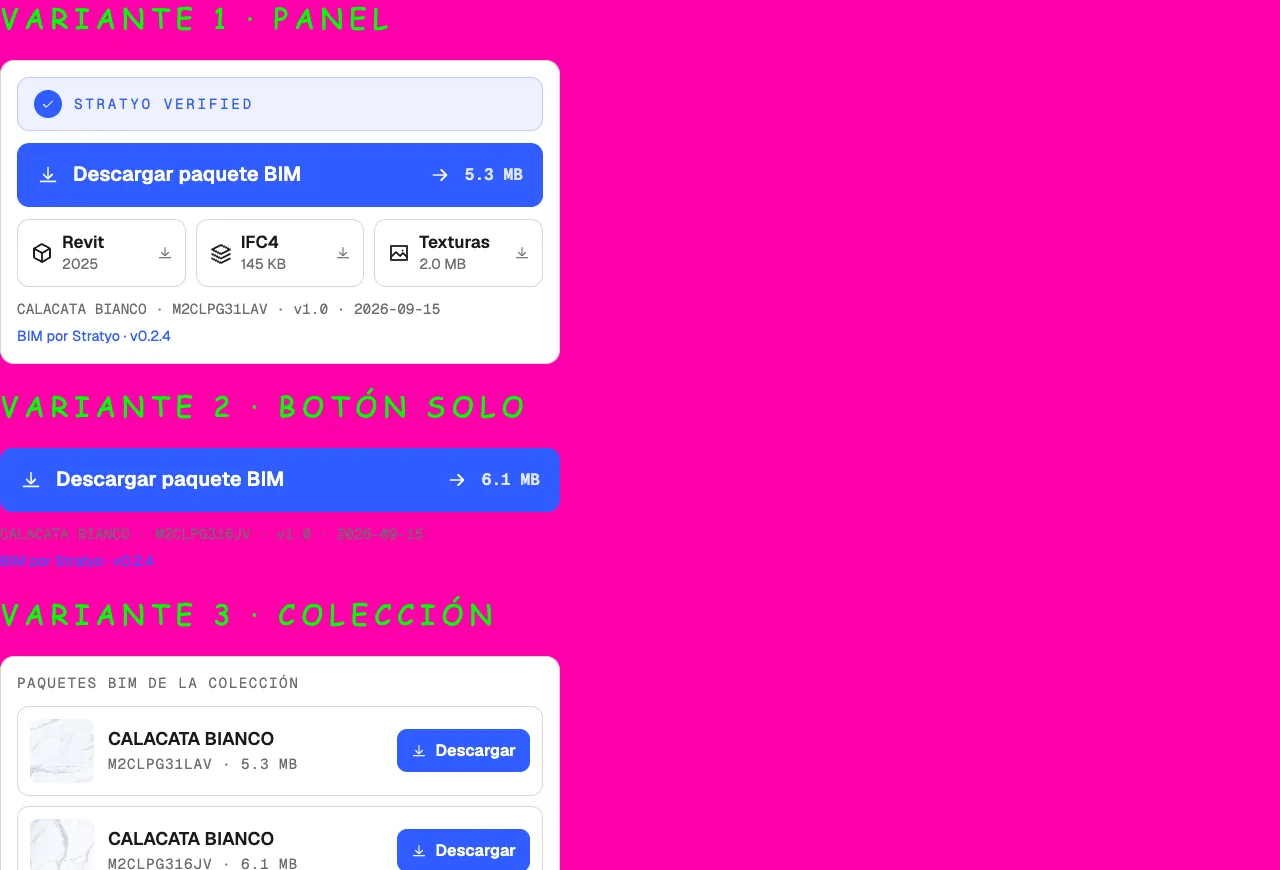
A script with no dependencies that you paste into each product page and that draws the download panel: the Stratyo Verified seal when the version has it, the full package and one format per card. The architect never leaves your site; the file comes from Stratyo.
The snippet
One `<script>` tag per product, wherever you want the panel. The data comes from the brand and the product code (the same one in your spreadsheet).
<script src="https://cdn.stratyo.io/widget.js" defer
        data-brand="san-lorenzo-design"
        data-sku="M2CLPG31LAV"
        data-lang="en"></script>
Attributes
- data-brand
- The brand’s identifier in Stratyo (we give it to you when the brand is set up). Required.
- data-sku
- The product code. Draws the panel: the Stratyo Verified seal if the version has it, the “Download BIM package” button with the size, and one card per format (Revit with its version · IFC4 · Textures). Below, product, code, version and date.
- data-variant="button"
- With data-sku: only the package button, for where there is no room for the panel.
- data-collection
- Instead of data-sku: one card for each published product of the collection, with thumbnail, name, code and button.
- data-lang
- “es” or “en” for the panel’s labels. If missing, the browser’s language. Product names come in your brand’s publication language.
- defer
- So the script does not hold up the rest of your page. Recommended.
WordPress
- On the product page, add a “Custom HTML” block.
- Paste the snippet with that product’s data-sku.
- Publish. The panel appears where the block is, with your typography around it and its own inside.
Shopify
- In the theme editor, add a “Custom Liquid” section or block to the product template.
- Paste the snippet; if the product code lives in a metafield, use it as data-sku.
- Save. One block serves every product.
HTML
- Paste the snippet where you want the panel. Nothing else is needed: no dependencies, no CSS to load.
Allow-listing your domain
The panel only answers from the domains the brand authorized (the “allowed origins”). When the brand is set up we ask for the list; to add a domain later, you add it yourself from your portal, or write to us through the demo form.
If something fails
From the first instant the panel shows a link to the product’s public page. If the script does not load, if your domain is not allow-listed or if the API does not answer, the architect sees that link and gets there anyway. Never a hole in your page.
Want to see it on your site
Request a demo: we set up the brand and the domain, and test the panel on one of your pages.